




















How to Use Multiple Accounts on the Same Website with Aye Profile Windows
Direct answer: To use multiple accounts on the same website in one browser, open each account in a separate Aye Profile Window. Each Profile Window keeps its own tabs, cookies, sign-ins, and site data, so switching an account in one profile does not replace the session in another. Choose a Persistent profile when you want to reopen the account later, or a Temporary profile when the session is only needed for a short time.
Disclosure: This guide is written by the Aye team and describes Aye's current Profile Windows feature. It is not an independent product review.
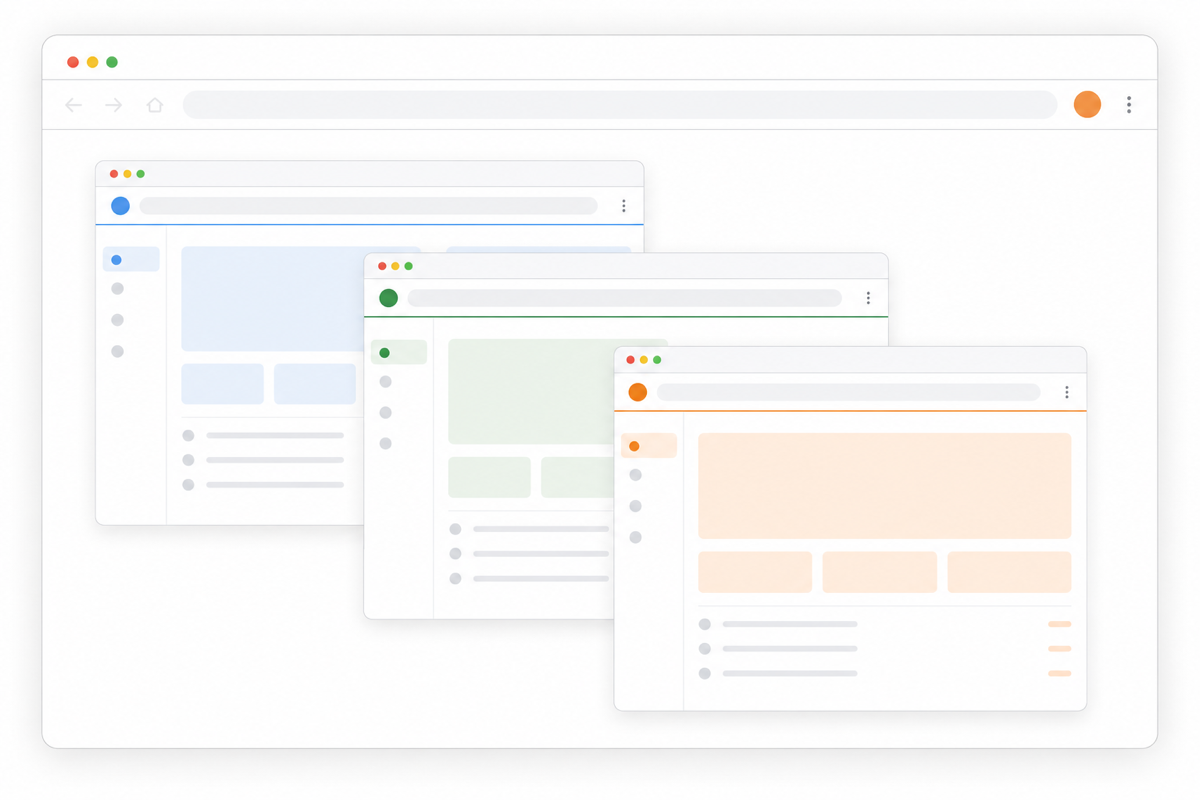
Feature illustration; colors distinguish login environments and do not represent real websites or accounts.
Set up separate account sessions in Aye
1. Open “New Profile Window…”
- On Mac, open File in the system menu bar, then select New Profile Window….
- On Windows, open Aye's browser menu in the upper-right corner, then select New Profile Window….
You can also open Manage Profiles… from the same menu area to find, rename, or delete profiles you have saved.
2. Choose a Persistent or Temporary profile
Select Persistent profile for an account you expect to use again. Aye keeps that profile's tabs, cookies, sign-ins, and site data on this device so you can reopen it later. A website can still expire or revoke its own session and ask you to sign in again.
Select Temporary profile for a short-lived login or an isolated test. It uses a separate in-memory session. When its final related window is closed, Aye does not save that profile's tabs or site data for a later reopening.
About Advanced settings: Cookie and sign-in separation comes from the Profile Window's independent session and does not require Advanced settings. The creation panel also exposes optional proxy and fingerprint controls, but this guide does not claim that those controls make you anonymous or prevent sites from linking accounts.
3. Check the result with accounts you are allowed to use
Open the same website in two Profile Windows and sign in to a different authorized account in each one. Switch between the windows and refresh the pages. Each window should continue to show its own account instead of replacing the other window's login.
That check demonstrates separate website sessions. It does not prove that a site cannot associate accounts through an IP address, device signals, account information, or behavior.
Why extra browser windows can still mix up accounts
Opening two ordinary windows usually does not create two separate website sessions. Both windows can belong to the same browser profile and share cookies, sign-ins, and local site storage. If you switch accounts in one window, the other may switch too.
Aye binds each Profile Window to a separate session from the moment it is created. Tabs inside one Profile Window share that profile's session, while a different Profile Window gets a different cookie and sign-in environment.
Aye's implementation distinguishes sessions that can be stored on disk from sessions that exist only in memory. The underlying model is documented in the official Electron Session reference.
Persistent and Temporary profiles serve different jobs
Persistent profile: for an account you return to
A Persistent profile is useful for a work login, personal login, client project, or test environment you regularly reopen. Give it a recognizable name such as “Work email,” “Personal social,” or “Project A” so you can confirm the intended account or profile before taking an action.
Persistence means Aye can retain the local browser session. It does not mean that the website promises a permanent login or that the profile is synced to another device.
Temporary profile: for a one-time or short test
A Temporary profile is useful when you need to check another account, reproduce a signed-out experience, or finish a task without keeping that session available for later reopening.
It is similar to private browsing in one important respect: the temporary site session ends when the related windows are closed. It should not be treated as “nothing remains on the computer.” Files you intentionally download can remain on disk. Chrome's official Incognito explanation describes the same general boundary for downloads, bookmarks, and visibility to websites.
Practical ways to use multiple accounts in one browser
Keep work and personal accounts separate
Leave email, documents, social tools, and admin dashboards signed in inside named Persistent profiles. This reduces repeated sign-outs and makes the active identity easier to check before sending a message or changing a setting.
Give each authorized client or project its own session
If you are authorized to maintain several client dashboards or community accounts, a separate Persistent profile for each project reduces cookie and sign-in mix-ups. It does not override the website's rules for account access or multi-account use.
Test another account without disturbing the current one
Use a Temporary profile to inspect a signed-out page, reproduce a login issue, or briefly open another account while leaving the current session untouched. Close the Temporary profile's final related window when the test is complete.
Aye Profile Windows, Incognito, and full browser profiles
These tools overlap, but they do not have identical boundaries.
An Aye Persistent profile separates the website session and keeps it available on this device for later use. It is a focused way to keep several account sessions inside Aye.
An Aye Temporary profile or an Incognito window creates a short-lived website session that is not kept for later reopening after its related windows are closed. Downloads and other user-created artifacts can still remain.
A full Chrome profile separates a broader set of browser data, including items such as bookmarks, history, passwords, and settings. Google documents that broader model in Use Chrome with multiple profiles.
Aye Profile Windows currently focus on tabs, cookies, sign-ins, and site data. These browser-level features are not profile-scoped in Aye's current model: bookmarks, browsing history, download records, the password vault, and most settings. If different people share a computer and need fully separate browser data, use separate operating-system accounts or full browser profiles.
Session separation is not anonymity or unlimited account use
Profile Windows solve a login-session problem. They do not make the following promises:
- A separate IP address is not assigned by default.
- A website may still associate accounts using network, device, account, or behavioral signals.
- Profile Windows do not bypass logins, CAPTCHA challenges, access controls, platform policies, or account limits.
- Aye does not promise an unlimited number of profiles or identical behavior on every website; practical capacity also depends on the computer and the pages being opened.
Only use accounts you own or are authorized to manage, and follow each website's terms and security requirements.
Frequently asked questions
Can I log in to multiple accounts on the same website at once?
Yes. Sign in to each authorized account in a different Aye Profile Window. The windows do not share cookies or website sign-ins by default, although the website's own account policies still apply.
Will I stay signed in after closing a Profile Window?
A Persistent profile retains its local sign-in data so it can be reopened, but the website may expire or revoke the session. A Temporary profile is not saved for later reopening after its final related window is closed.
Does each Profile Window have a different IP address?
No. Aye does not assign a different network connection to every profile by default. An optional proxy must be supplied, tested, and used lawfully by the user, and it does not by itself guarantee anonymity.
How do I delete a saved profile?
Open Manage Profiles…, find the saved profile, and choose Delete. Aye removes that profile's saved tabs, cookies, sign-ins, cache, and site data from this device. If the profile is still open in another window, close that window first.
Create your first Aye Profile Window
Aye currently offers Mac and Windows versions. Open the official Aye product page to choose the appropriate store. After installing Aye, use New Profile Window… from File on Mac or from the browser menu on Windows.
For a simple first check, create one Persistent profile called “Work,” then open one Temporary profile. Use two test accounts that you are authorized to access on the same website and confirm that each window keeps its own login.
Sources and review note
- Official Aye product page
- Electron Session reference
- Google Chrome: Use Chrome with multiple profiles
- Google Chrome: Browse in Incognito mode
Last reviewed: August 21, 2026. The current Mac and Windows store packages were rechecked for the documented Profile Windows UI and implementation. Product interfaces, store builds, and website behavior can still change.